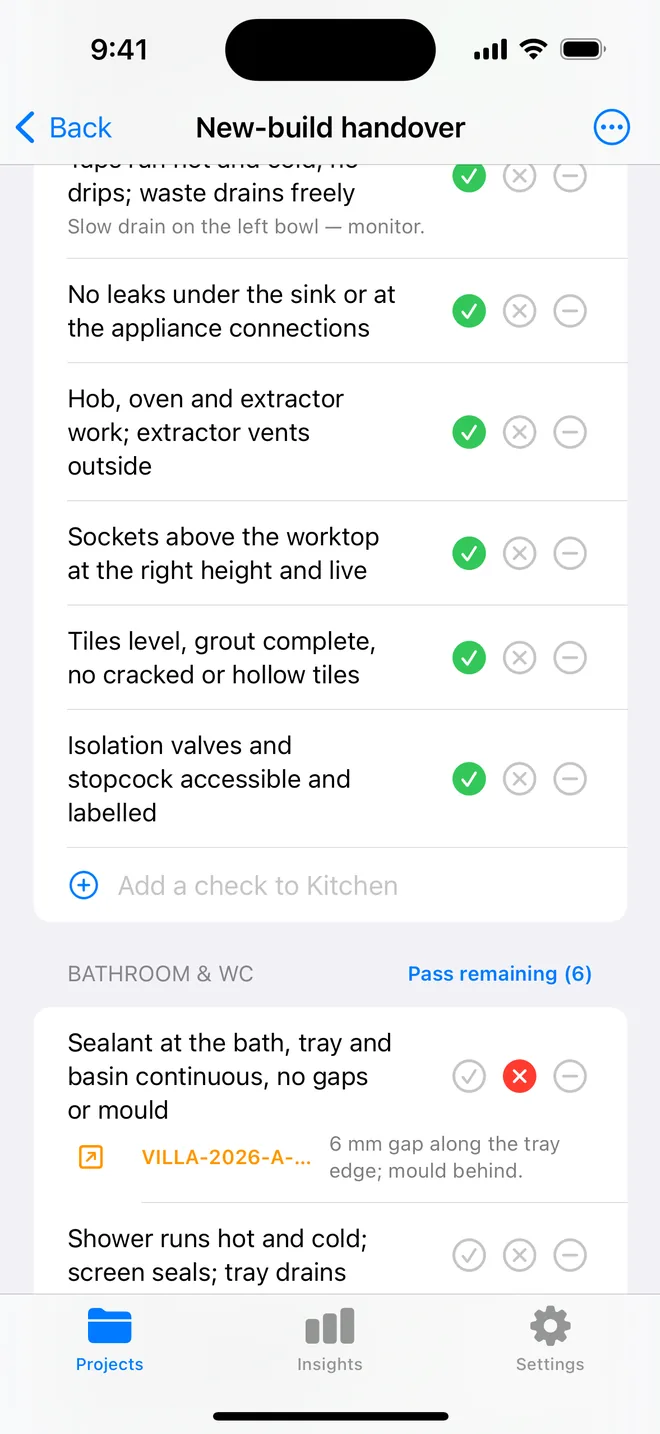
How the walk works in the app
- Open a project, tap Start next to Checklists and pick this walk, it is built in.
- Walk the areas in order. Tap Pass, Fail or N/A.
- A Fail creates an item with the area and trade filled in; take the photo and the AI drafts the description and severity.
- Add a check on the spot if the list forgot one. Save the walk as your own template.
- The report's appendix prints every check and its result.
The checklist
Trade in grey is what a Fail is filed under. Print this page or tick on screen.
Fire doors 4
- Self-closing doors close fully onto the latchSafety
- Intumescent and smoke seals intact; gaps under 4 mmSafety
- Doors not wedged or propped openSafety
- Signage present: Fire door keep shutSafety
Compartmentation 3
- Service penetrations fire-stopped; no daylight through wallsSafety
- Ceiling voids: no breaches in compartment linesSafety
- Riser cupboards locked and fire-stoppedSafety
Escape routes 3
- Corridors and stairs clear of storageSafety
- Final exit doors open freely without a keySafety
- Exit signs and emergency lighting lit; monthly test loggedElectrical
Equipment 3
- Extinguishers in place, serviced within the yearSafety
- Call points unobstructed; alarm panel healthySafety
- Dry riser inlets and outlets accessibleSafety
Questions
How do I use the fire safety walk checklist in the app?
It is built in: open a project, tap Start next to Checklists and choose it. Tap Pass, Fail or N/A per check; a Fail creates an item with the area and trade filled in.
Can I change the checks?
Yes. In the app, swipe the template to customise a copy: rename areas, add or remove checks, change the trade. You can also add a check during a walk and save the walk as a new template.
Does the walk print on the report?
Yes. The PDF's checklist appendix lists each area, each check, its result and the item a Fail created.
Walk it on your phone
Free to download; the first project is free for good. Checklists are free.
Download on theApp Store