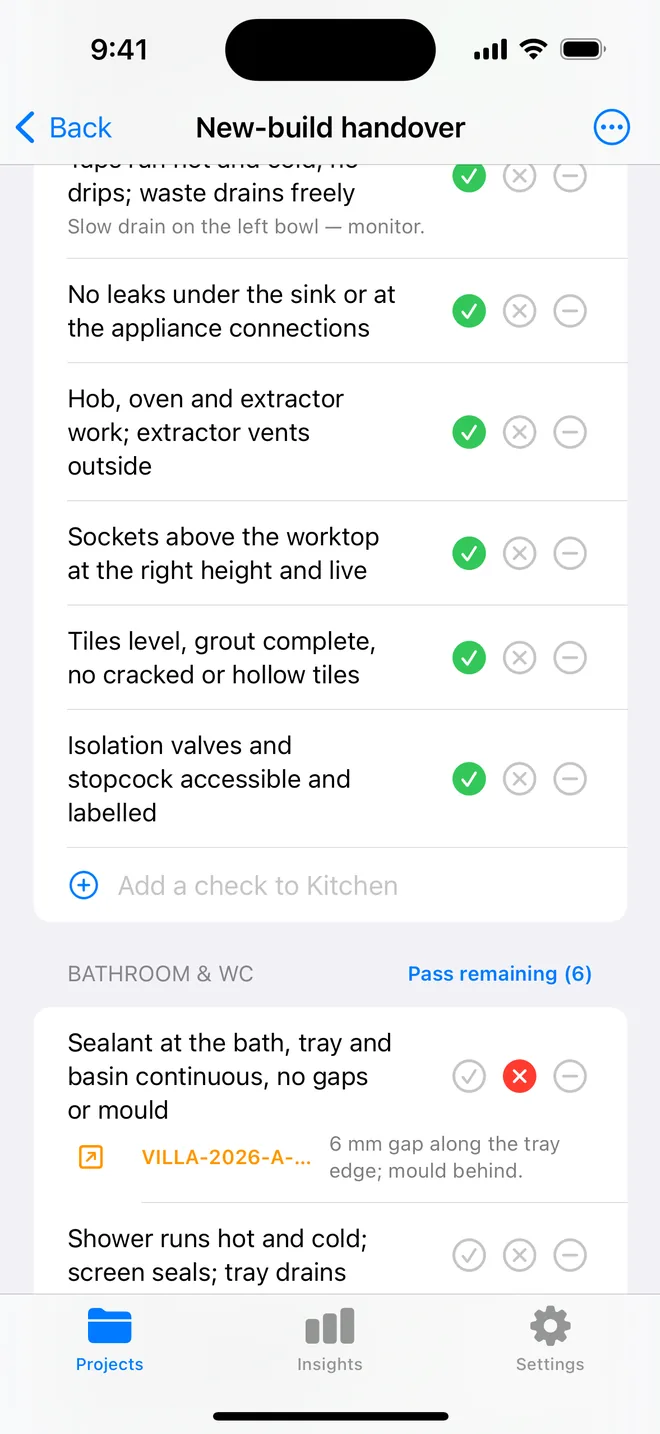
How the walk works in the app
- Open a project, tap Start next to Checklists and pick this walk, it is built in.
- Walk the areas in order. Tap Pass, Fail or N/A.
- A Fail creates an item with the area and trade filled in; take the photo and the AI drafts the description and severity.
- Add a check on the spot if the list forgot one. Save the walk as your own template.
- The report's appendix prints every check and its result.
The checklist
Trade in grey is what a Fail is filed under. Print this page or tick on screen.
Reception & entrance 4
- Entrance doors, closers and access control workFinishing
- Floor finish complete; transitions flush; matting fittedFinishing
- Feature walls and signage as specifiedCosmetic
- Lighting scene and emergency lighting workElectrical
Open-plan areas 5
- Ceiling grid level; tiles complete and cleanFinishing
- Partitions plumb; deflection heads and joints finishedFinishing
- Floor boxes and power/data outlets live and labelledElectrical
- Blinds fitted and operatingFinishing
- Paint finish even; no defects on feature wallsCosmetic
Meeting rooms 4
- Doors, vision panels and acoustic seals fittedFinishing
- AV, data and power outlets as drawn and liveElectrical
- Glazed partitions: manifestation applied, no scratchesSafety
- Ventilation and temperature control workMechanical
WCs & showers 4
- Sanitaryware fixed; no leaks; flushes and drainsPlumbing
- Sealant and tiling complete; grout evenFinishing
- Accessible WC: rails, alarm cord and mirror at the right heightsSafety
- Extract runs; hand dryers and lighting workElectrical
Kitchenette 3
- Units and worktop complete; sealant continuousFinishing
- Boiling tap, dishwasher and fridge connected; no leaksPlumbing
- Sockets and isolators labelled and liveElectrical
Services & plant 4
- Distribution boards labelled; test certificates suppliedElectrical
- Mechanical commissioning complete; balancing report suppliedMechanical
- Fire stopping complete at every penetration through compartment wallsSafety
- Access panels fitted and labelledFinishing
Fire & life safety 4
- Fire doors: closers, seals, signage, gaps within toleranceSafety
- Extinguishers and signage in placeSafety
- Alarm sounders and call points testedSafety
- Escape routes clear; exit signs litSafety
Questions
How do I use the commercial fit-out checklist in the app?
It is built in: open a project, tap Start next to Checklists and choose it. Tap Pass, Fail or N/A per check; a Fail creates an item with the area and trade filled in.
Can I change the checks?
Yes. In the app, swipe the template to customise a copy: rename areas, add or remove checks, change the trade. You can also add a check during a walk and save the walk as a new template.
Does the walk print on the report?
Yes. The PDF's checklist appendix lists each area, each check, its result and the item a Fail created.
Walk it on your phone
Free to download; the first project is free for good. Checklists are free.
Download on theApp Store