In this guide
Start a project
One project per site, unit or visit. What you type here, name, reference, address, client contact, inspector and licence: prints on the report cover, so fill it once and every report carries it.
On the Projects tab, tap +. If the next job is the same client on the next plot, swipe an existing project and choose Duplicate: it copies the client, site and inspector and starts an empty list numbered from 1.
Long-press a project → Move to Folder to group by client, site or phase. A folder is just the projects that share its name: rename it or remove it from the ⋯ on its heading, and tap the heading to fold it away. Nothing to migrate, nothing that can go missing.
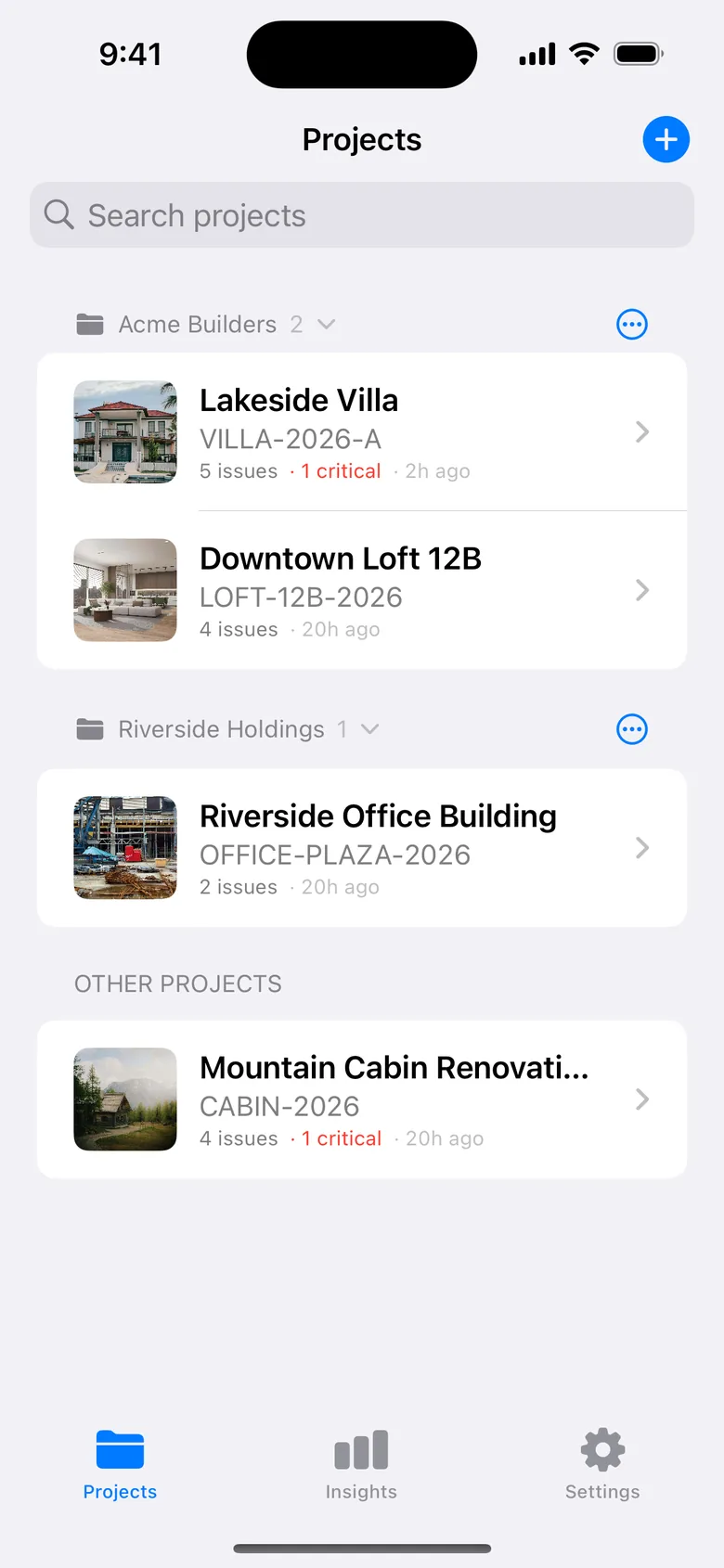
Sample project. The app opens with “Sample — Lakeside Villa”, six finished items you can turn into a report in under a minute. It does not count against the free plan and you can delete it.
Capture a defect
Open the project, tap + → Take Photo. The AI reads the picture and drafts the title, a description, the severity, the trade and a recommendation, usually in three to six seconds. Review the draft, then Save to Project.
On a long walk, Save and Take Next Photo saves and reopens the camera in one tap. To log a whole batch at once, Import Several Photos drafts every photo you pick, one after the other; untick the ones you do not want before adding. Create Manually skips the AI: a title and the fields, no photo needed.
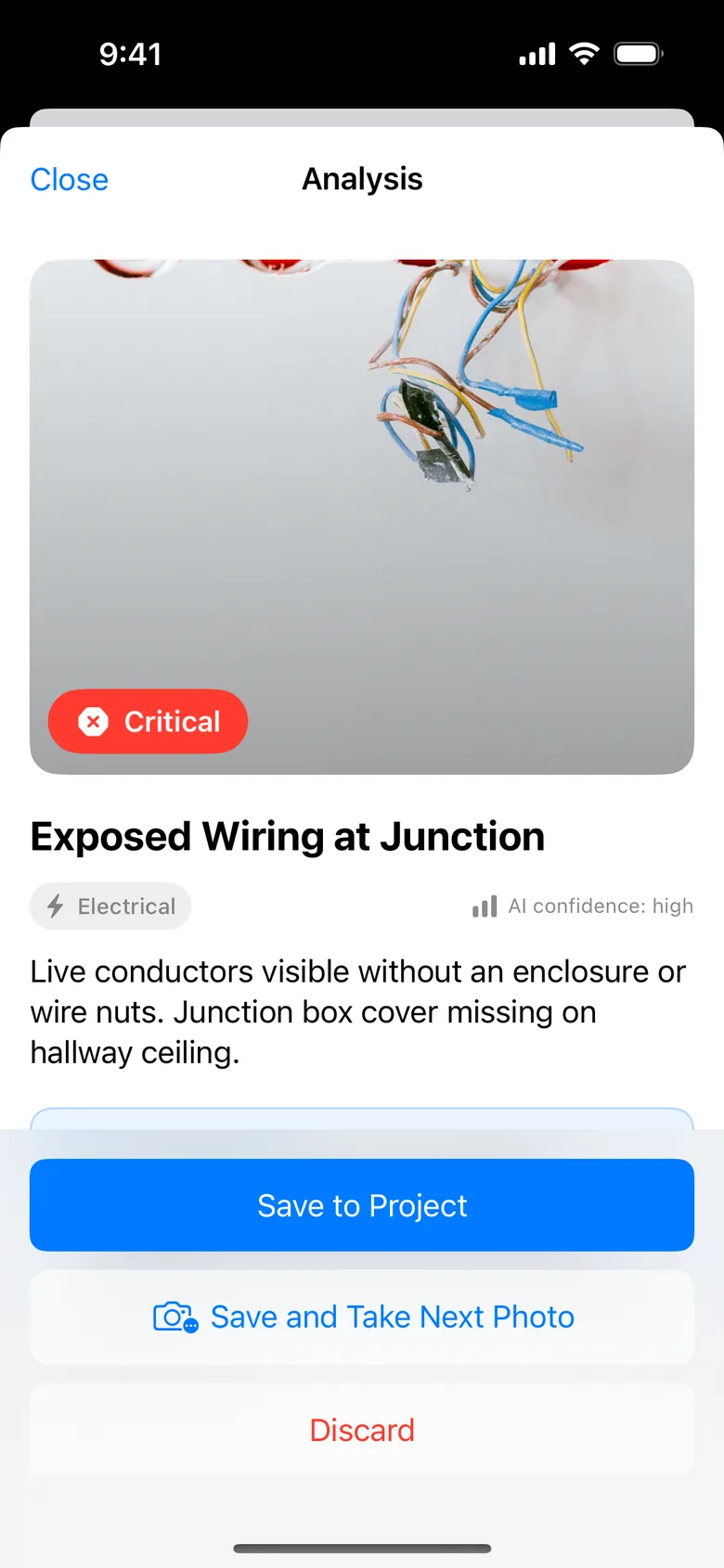
Two things the AI is told about your project so the draft speaks its vocabulary: the project name and address, and the last few item titles, so it does not log the same finding twice. Nothing else leaves the device, see Privacy.
Better photos, better drafts. Fill the frame with the defect, keep the phone level, and include a hand or a tape for scale when size matters. A dark or distant photo gets a vague draft.
Review before it prints
The AI drafts; you decide. Every field on the item screen is editable and the report prints your words, it never says “AI” anywhere on the PDF.
Severity is how serious the defect is (the AI suggests it). Priority is the order of work, which follows the severity until you set it apart, a cosmetic item can be high priority the day before handover. The list shows one badge unless the two differ.
Location and Assigned to are remembered from the previous item, and every value already used in the project sits as a chip under the field. Logging “Bathroom 2” twelve times is one tap eleven times.
Annotate draws on a copy of the photo, a circle, an arrow, a note, and the report prints the annotated version while the original stays untouched.
Find, filter, fix in bulk
In a project, pull the list down to search by title, description, location, trade, reference, assignee or tag. Filter narrows by status, severity, trade, assignee or overdue; active filters show as chips you can remove one by one, with “n of m” beside them.
Select Items (⋯ menu, or long-press an item → Select) lets you change the status or priority of several items, or delete them, in one go, closing twenty items after a re-inspection takes three taps.
Walk a checklist
Start Checklist offers four built-in walks: new-build handover (57 checks, room by room), rental move-in/move-out, commercial fit-out at practical completion, and a fire safety walk. Each check is Pass, Fail or N/A; “Pass remaining” clears a room in one tap.
A Fail creates an item with the room as location, the check as title and the trade filled in, and opens it so the photo is one tap away. The row then links to the item’s reference.
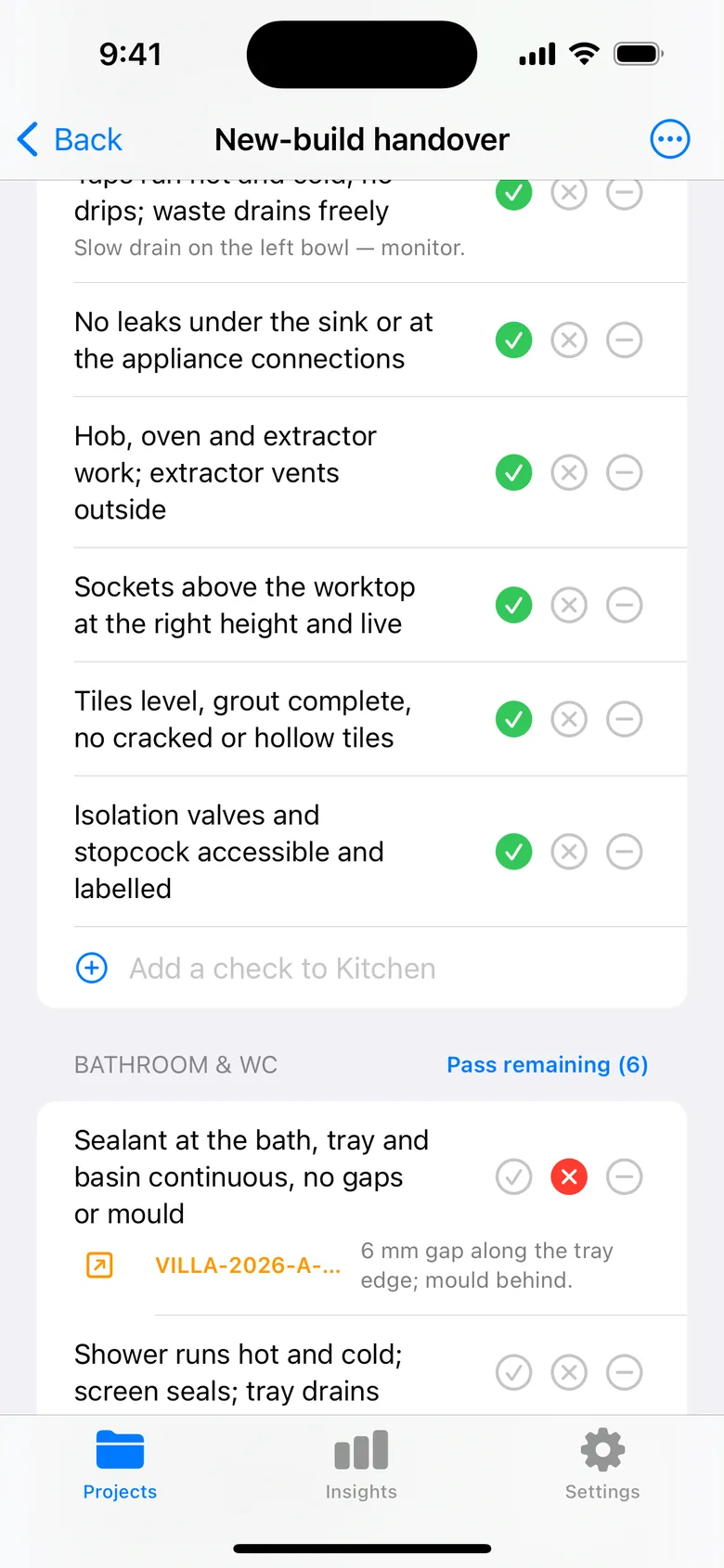
When something was not on the list, Add a check at the end of the room, or add a new area from the menu. Save as Template keeps the enriched walk as one of yours for next time; swipe a built-in walk to customise a copy, or tap + to build one from scratch. Long-press any template to share it as a file another inspector imports with Import Template.
The walk prints as an appendix to the report: each check with its result and the item it created.
Close with proof
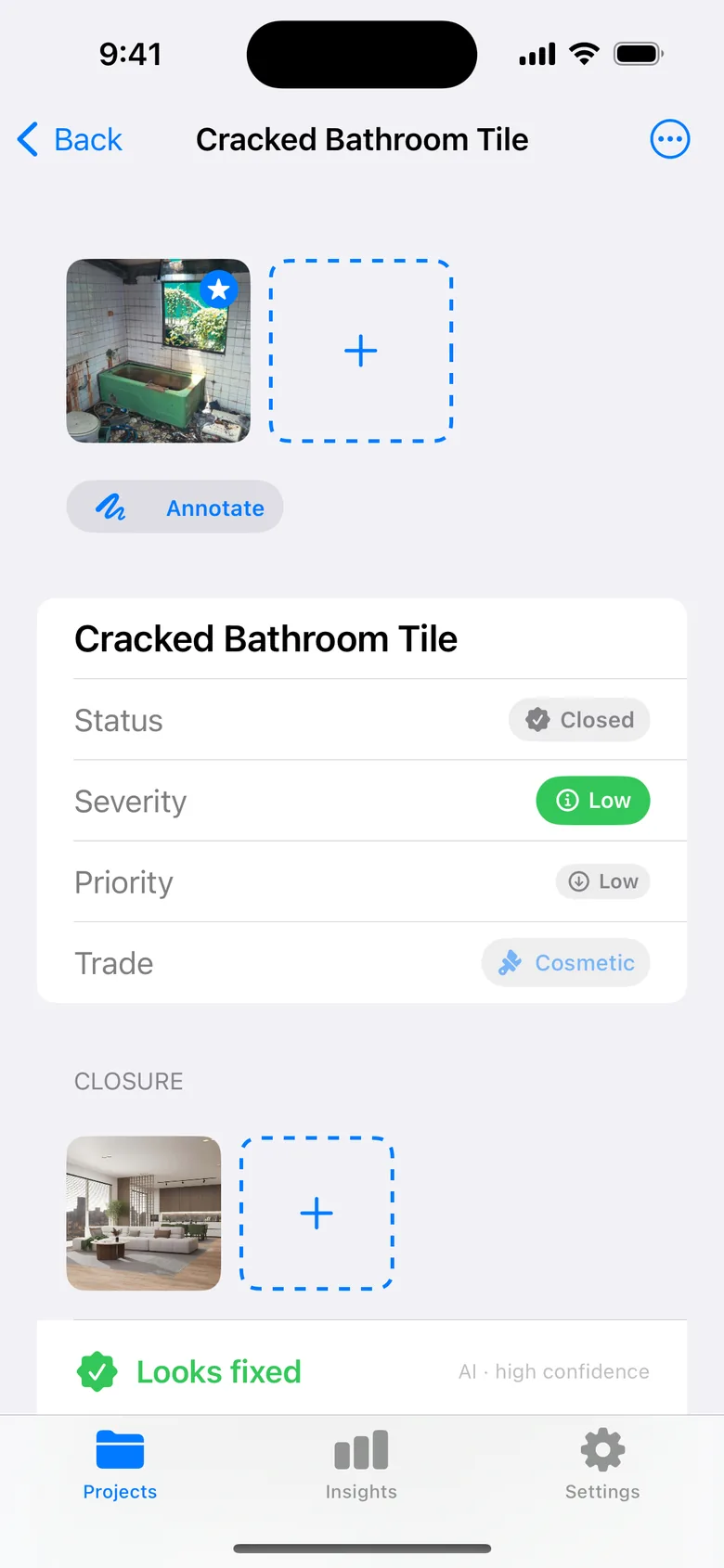
A punch list is only a record once it says what happened. On a resolved item, the Closure section takes up to three after photos, a closure note, and Verified on site your name and the date are filled in when you switch it on.
The report prints Before and After side by side, with the dates, and a Closure line: “Verified by Mark Anderson on 15 Sep 2026. Tile replaced and re-grouted.”
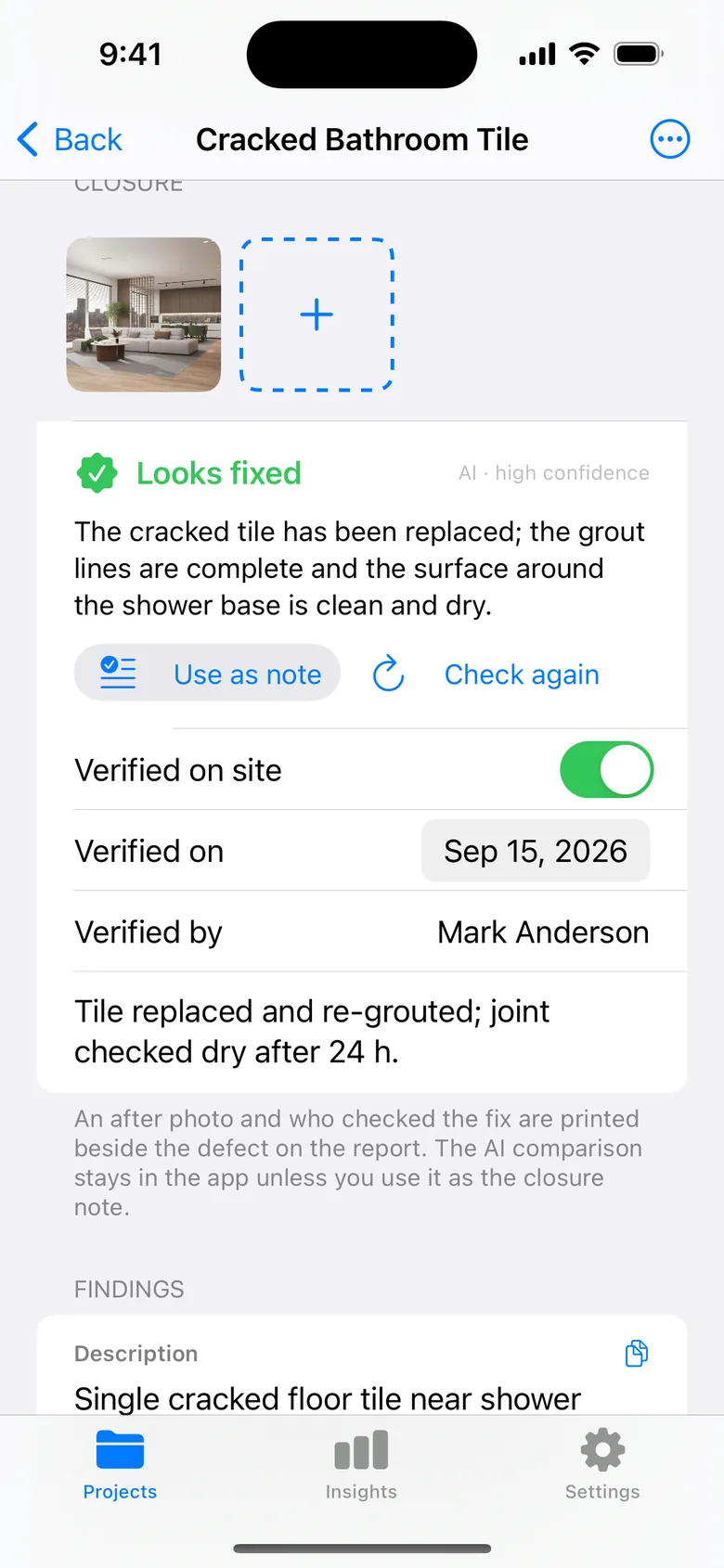
Compare Before and After with AI reads both photos and answers: looks fixed, partly fixed, not fixed, or can’t tell, with what still looks outstanding. It is an aid, not a verdict on the record: it stays in the app unless you tap Use as note.
Generate the report
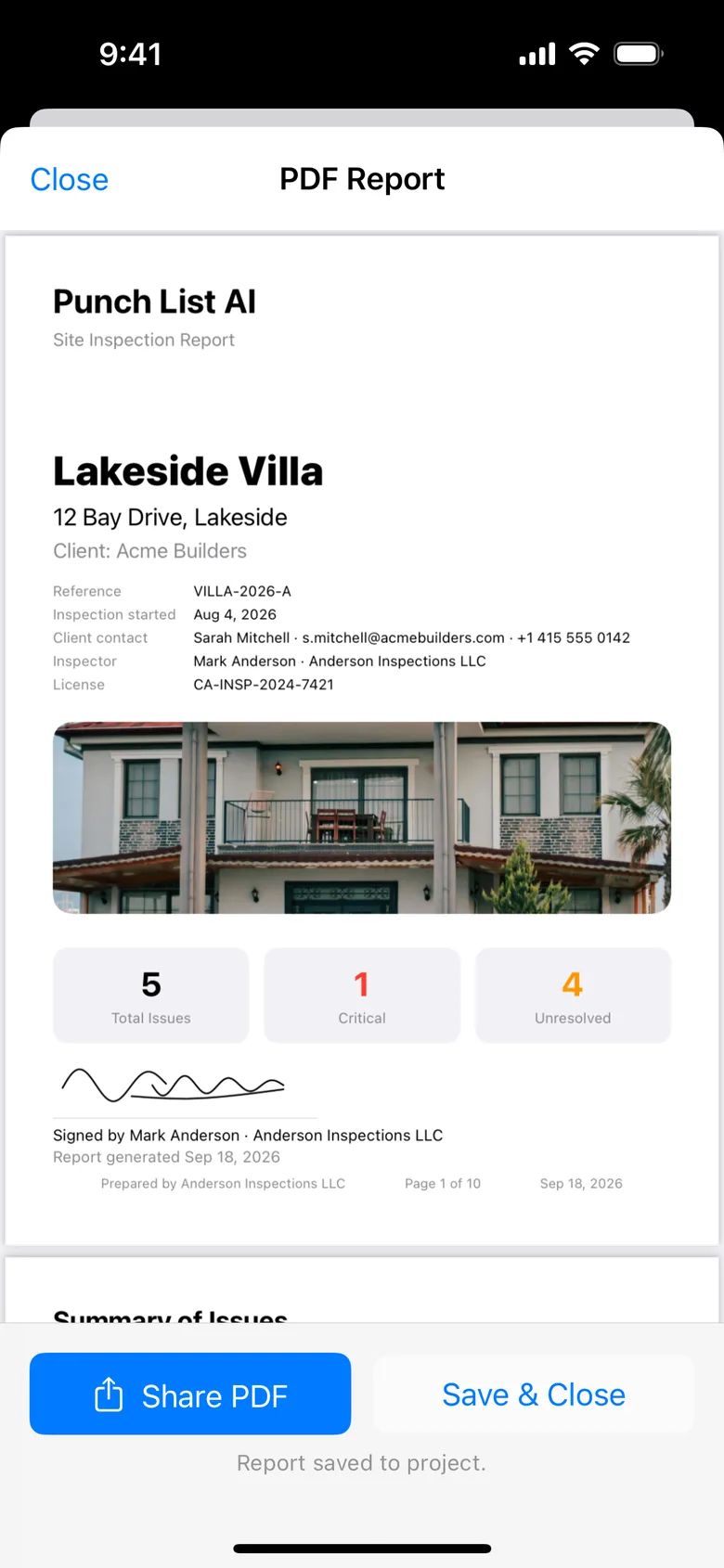
In a project, ⋯ → Generate Report. The PDF has a cover (your title, reference, dates, client, inspector, licence, site photo, an introduction, your signature and the client's), a summary table with priority, trade, location, due date and overdue in red, one page per item with the photo at the right scale, closing remarks and the checklist appendix.
Report options remembers how you like it: one of ten themes (Classic, Minimal, Modern, Slate, Blueprint, Ocean, Forest, Terracotta, Heritage, Letter), a layout (Standard, Compact with two items a page, or Schedule, one table grouped by contractor), photo size, and which sections print: photos, recommendations, inspector notes, page numbers, the appendix.
Report wording sets the cover title, renames the headings on each page, and adds an introduction on the cover and closing remarks on their own page, for that project. Client sign-off lets the client, the contractor or the owner's representative sign on the device at handover; it prints on the cover beside your signature. Preview the PDF, then Share or Email Client (pre-addressed to the client on the project, PDF attached).
Word (.docx), on Pro, exports the whole report as an editable document for Word, Pages or Google Docs, photos and signatures included. CSV exports the list for Excel, Numbers or Google Sheets. CSV + Photos adds every photo in a zip, named after its row, so a spreadsheet and its pictures stay matched.
Your signature is drawn once in Settings → Reports and prints on every cover. On Pro, your logo and company name replace the app’s in the footer. Call each item a… sets the word the app and the report use: issue, snag, defect, deficiency, punch item, observation, or your own.
Sync between iPhone and iPad
Projects, items, photos and reports sync through your own iCloud, on the free plan too. Sign into the same Apple ID on both devices and leave the app open on Wi-Fi for the first sync, a project with many photos can take a few minutes. Settings → iCloud Sync shows the status and the last error.
Photos count against your iCloud storage. Nothing is stored on our servers: AI requests go through an attested relay and are not kept. Deleting a project deletes it from iCloud too, so export a CSV + Photos zip first if you may need it again.
Still stuck?
The troubleshooting page covers the eight things people write to us about. If yours is not there, email punchlistai@niceexpress.org: a person reads it, usually the same day.