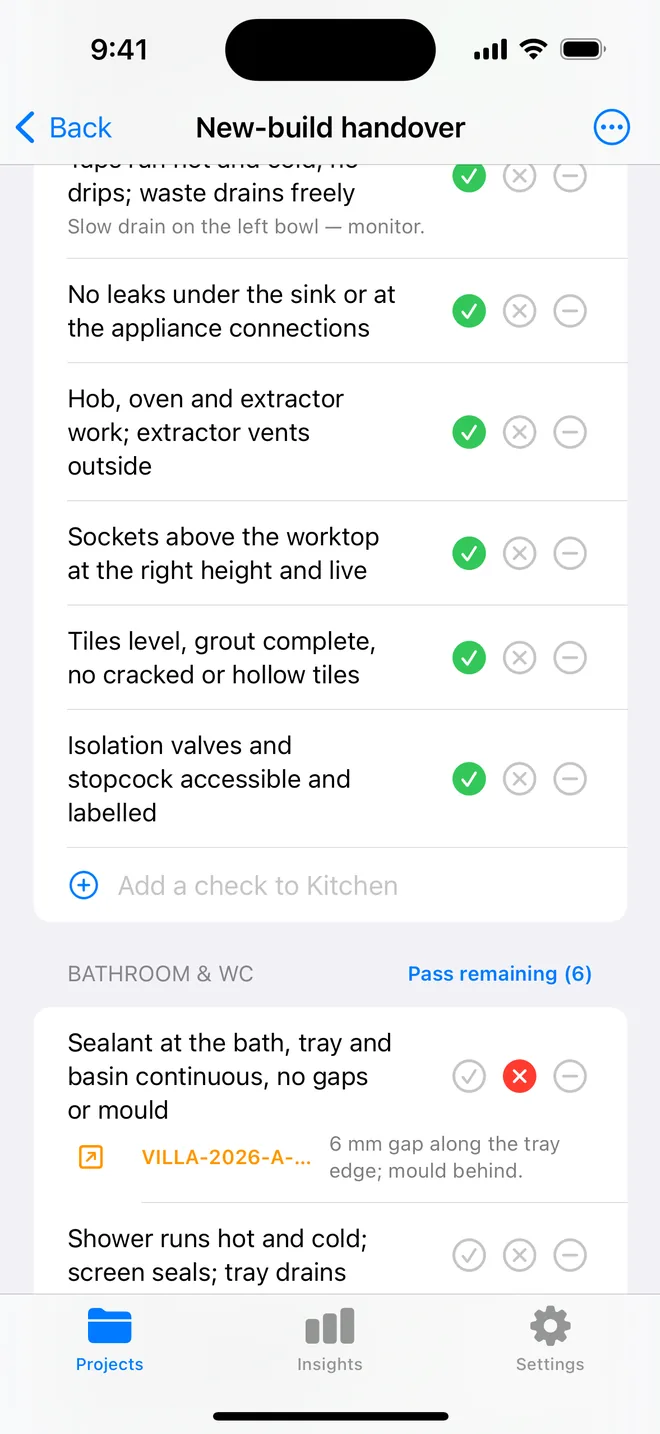
How the walk works in the app
- Download the file above on your iPhone or iPad and open it; it appears under Your templates.
- Walk the areas in order. Tap Pass, Fail or N/A.
- A Fail creates an item with the area and trade filled in; take the photo and the AI drafts the description and severity.
- Add a check on the spot if the list forgot one. Save the walk as your own template.
- The report's appendix prints every check and its result.
The checklist
Trade in grey is what a Fail is filed under. Print this page or tick on screen.
Consumer unit 5
- Circuits labelled legibly; schedule matches the installationElectrical
- RCD or RCBO test buttons trip and resetSafety
- Main switch, bonding and earth labels presentSafety
- Blanks fitted; no exposed live parts; cover closesSafety
- Surge protection fitted where specifiedElectrical
Sockets and switches 5
- Every socket live and polarity-testedElectrical
- Faceplates level and flush; no cracked or paint-covered platesCosmetic
- Switches control the intended light; two-way circuits work both endsElectrical
- USB outlets charge; smart devices commissionedElectrical
- Heights and positions as drawnElectrical
Lighting 5
- All fittings work; lamps the right colour temperature and matchingElectrical
- Downlights fire-rated where required; insulation kept clearSafety
- Dimmers compatible: no flickerElectrical
- External lights and PIR sensors set and workingElectrical
- Emergency lighting tested where installedSafety
Bathroom and kitchen 4
- Bathroom accessories in the correct zone with the right IP ratingSafety
- Shaver socket, towel rail and fan isolators outside the room or out of reachSafety
- Cooker, hob and oven on dedicated circuits with isolatorsElectrical
- Kitchen sockets set back from the sink and hobSafety
Safety devices 3
- Smoke and heat detectors fitted, interlinked, testedSafety
- Carbon monoxide detector where fuel-burning appliances are presentSafety
- Doorbell, intercom and alarm commissionedElectrical
Certification and handover 3
- Electrical installation certificate issued and matches the workOther
- Building-control notification made where requiredOther
- Homeowner shown the consumer unit and RCD test routineOther
Questions
How do I use the electrical final fix checklist in the app?
Download the file below on your iPhone or iPad and open it, it lands in the template picker. Then open a project, tap Start next to Checklists and choose it. Tap Pass, Fail or N/A per check; a Fail creates an item with the area and trade filled in.
Can I change the checks?
Yes. In the app, swipe the template to customise a copy: rename areas, add or remove checks, change the trade. You can also add a check during a walk and save the walk as a new template.
Does the walk print on the report?
Yes. The PDF's checklist appendix lists each area, each check, its result and the item a Fail created.
Walk it on your phone
Free to download; the first project is free for good. Checklists are free.
Download on theApp Store