Step by step
- Fill the project header once: client contact, site address, reference, inspector and licence. Add your logo, company name and signature in Settings.
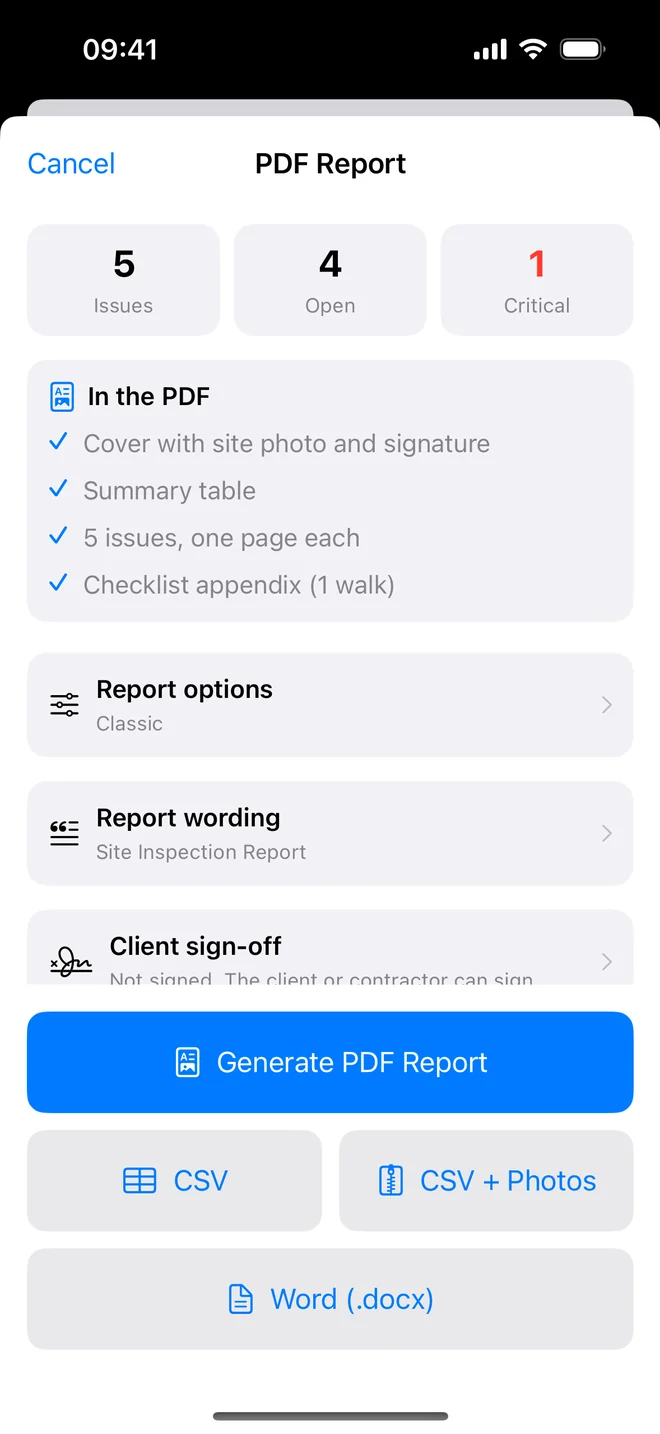
- Open ⋯ → Generate Report. The sheet lists what the PDF will contain.
- Tap Report options for one of ten themes, a layout, photo size and the sections to include; Report wording for the title and an introduction.
- Tap Generate PDF Report, read it through, then Email Client or share.
A snagging report the developer acts on has three things: a number on every snag, a photo beside every description, and a one-line action. The PDF gives all three by default; turn inspector notes off to keep your own remarks out of the client's copy.
Related questions
Can I change the wording from 'issue' to 'snag'?
Yes. Settings → Call each item a… → Snag. The report follows.
Is the PDF watermarked?
On the free plan, yes, discreetly. Pro removes it and prints your logo.
Try it on your next walk
Free to download; the first project is free for good. No account.
Download on theApp Store