Step by step
- Settings → Reports → Record photo location (iOS asks for permission once).
- Take photos in the app as usual.
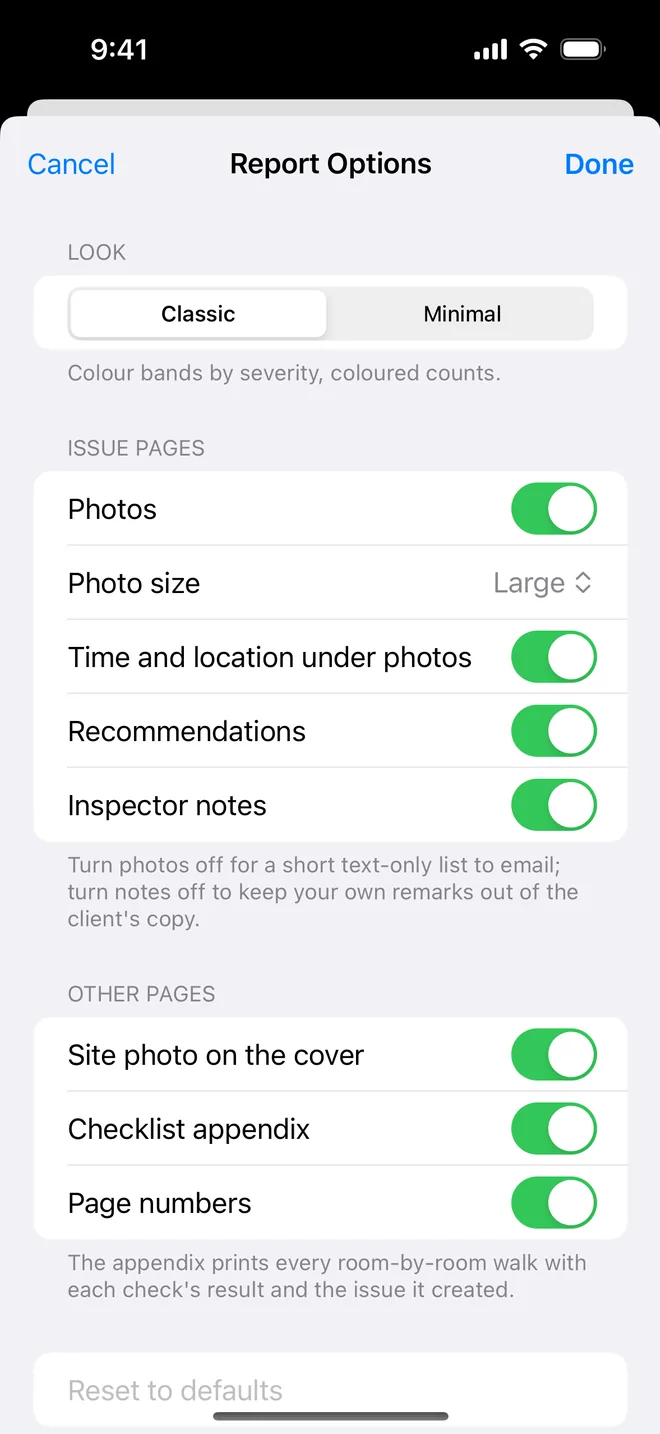
- In Report options leave Time and location under photos on.
When time and location settle an argument
Most of the time nobody reads the line under the photo. It matters on the day someone disputes a finding: a contractor says the damage happened after handover, a tenant says the mark was there at move-in, a developer says the photo is from another plot. A capture time and a position printed under the photo answer that in one line.
What to expect from the numbers:
- Time comes from the phone clock at the moment of capture and is reliable to the second.
- Position is usually good to a few metres outdoors. Indoors, on a concrete frame or in a basement, it can drift by tens of metres. It proves which building, not which room, so keep the room in the item's location field.
- Imported photos keep the time and place recorded by the camera that took them, which is useful when a site manager sends you pictures over WhatsApp, as long as their phone recorded location.
For a client copy where the address of a private home should not appear as coordinates, turn the line off in Report options for that export only. The data stays on the item and in the CSV for your own file.
Related questions
Is the location exact?
As exact as the phone's GPS at that moment, usually a few metres outdoors, less indoors. The time is always exact.
Can I turn it off for a client copy?
Yes. The Report options switch hides it without deleting anything.
Try it on your next walk
Free to download; the first project is free for good. No account.
Download on theApp Store