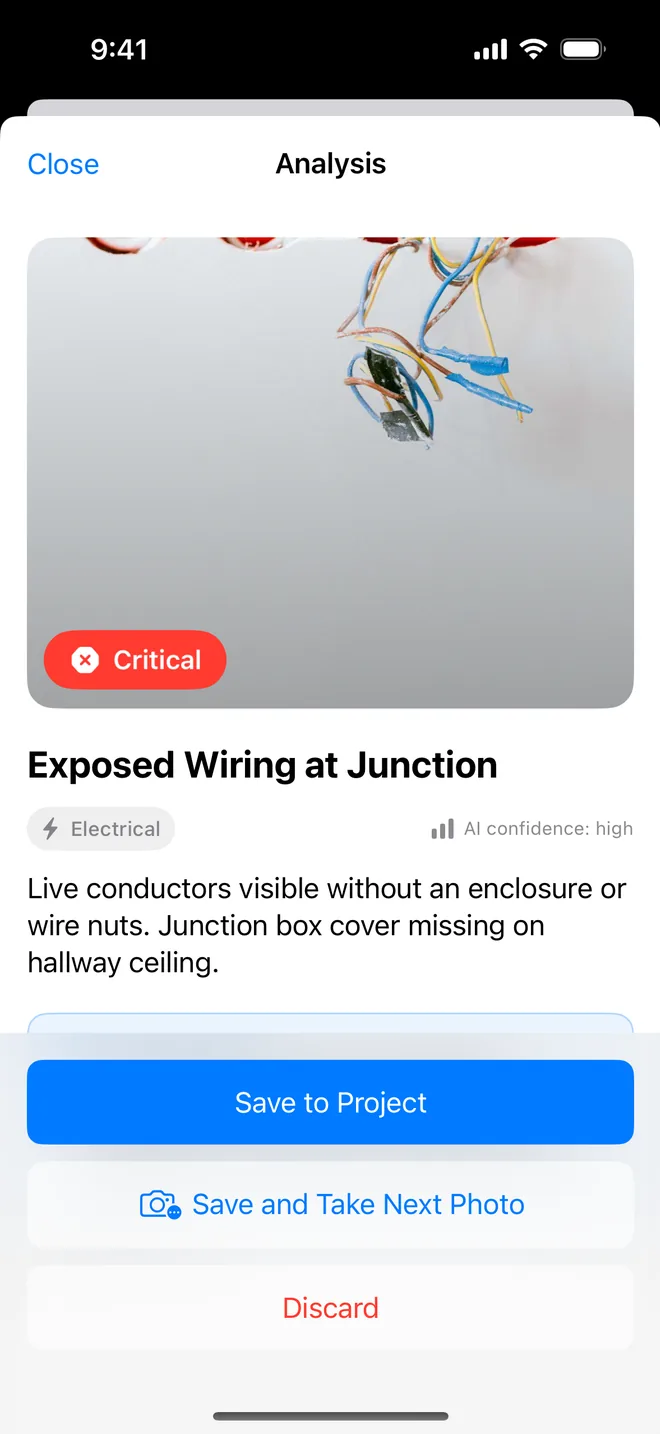
Step by step
- Tap + on the Projects tab and give the project a name, client and address (a reference and cover photo are optional).
- Tap + on the project and take a photo of the first defect, or pick several from your library with Multi-add.
- Read the draft: title, description, trade, severity, recommendation, confidence. Change anything; set the location and assignee (the app suggests the last ones).
- Tap Save and Take Next Photo and keep walking.
- From the project's ⋯ menu choose Generate Report; preview the PDF and share or email it.
Items are numbered automatically from the project reference (VILLA-2026-A-001…), so the contractor can quote them back. Every item can also be typed by hand, the camera is optional.
Related questions
Do I need an account to start?
No. Download, open the sample project or create your own, and go. The first project is free for good.
Can I add items without a photo?
Yes. Tap + and choose to type the item; every field is editable.
Try it on your next walk
Free to download; the first project is free for good. No account.
Download on theApp Store